Members can set up email alerts for their favorite artist and venues. First, login to your pollstar.com account
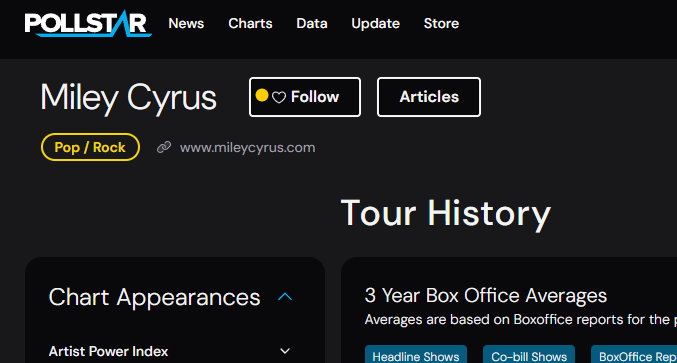
Go to the Artist or Venue entity page you wish to follow. Select 'Follow'.
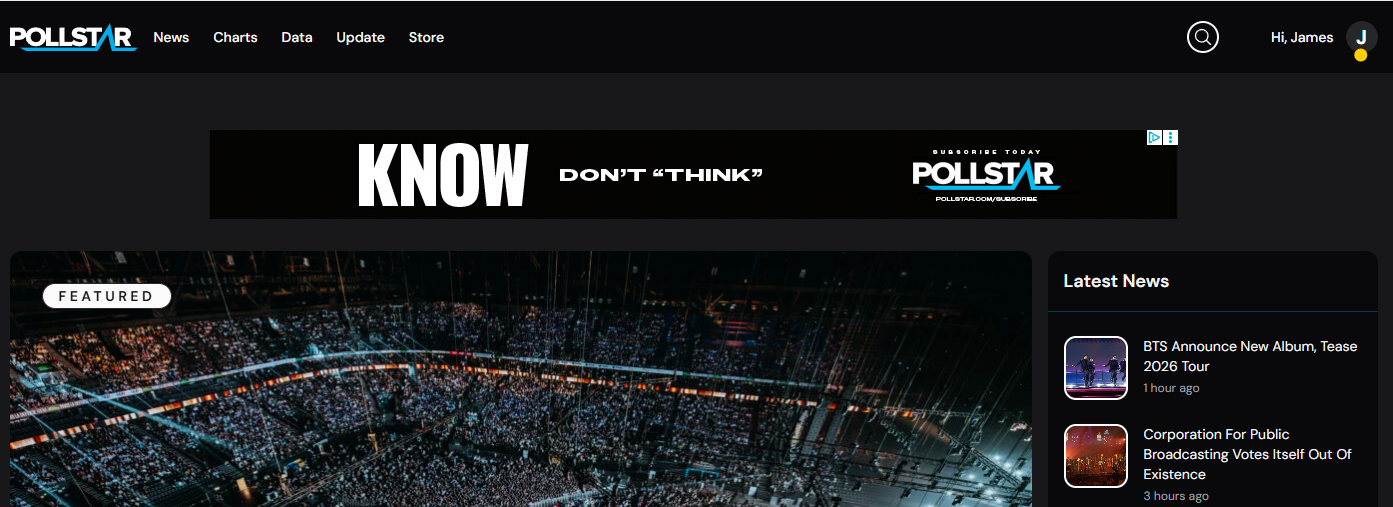
Go to your pollstar.com account icon, click to open the dropdown menu.
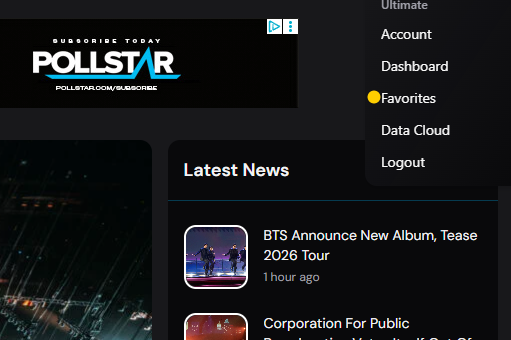
Click 'Favorites' in the drop down menu.
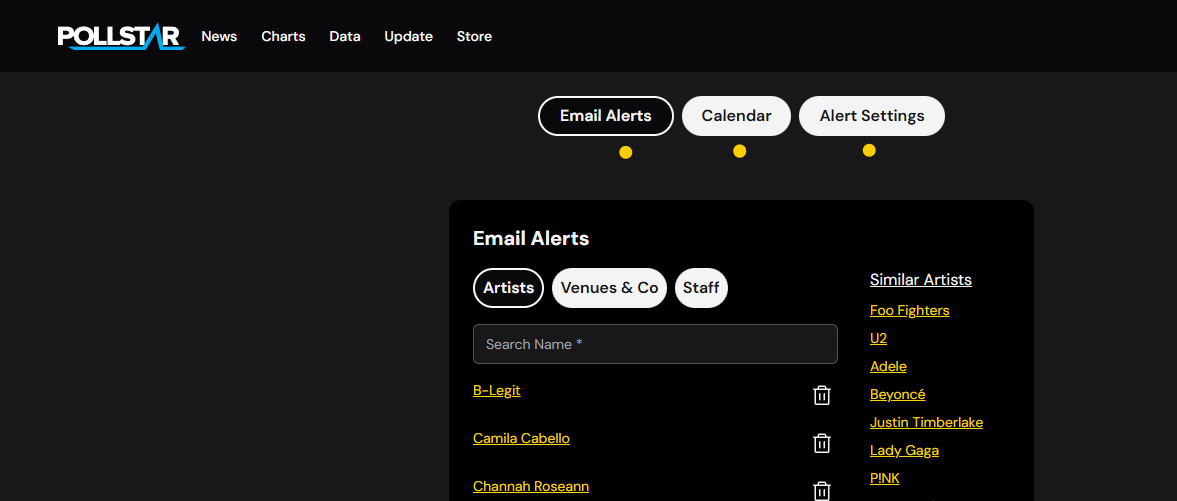
Here you can view your Favorites, artist, staff or venue entity pages you've selected to Follow.
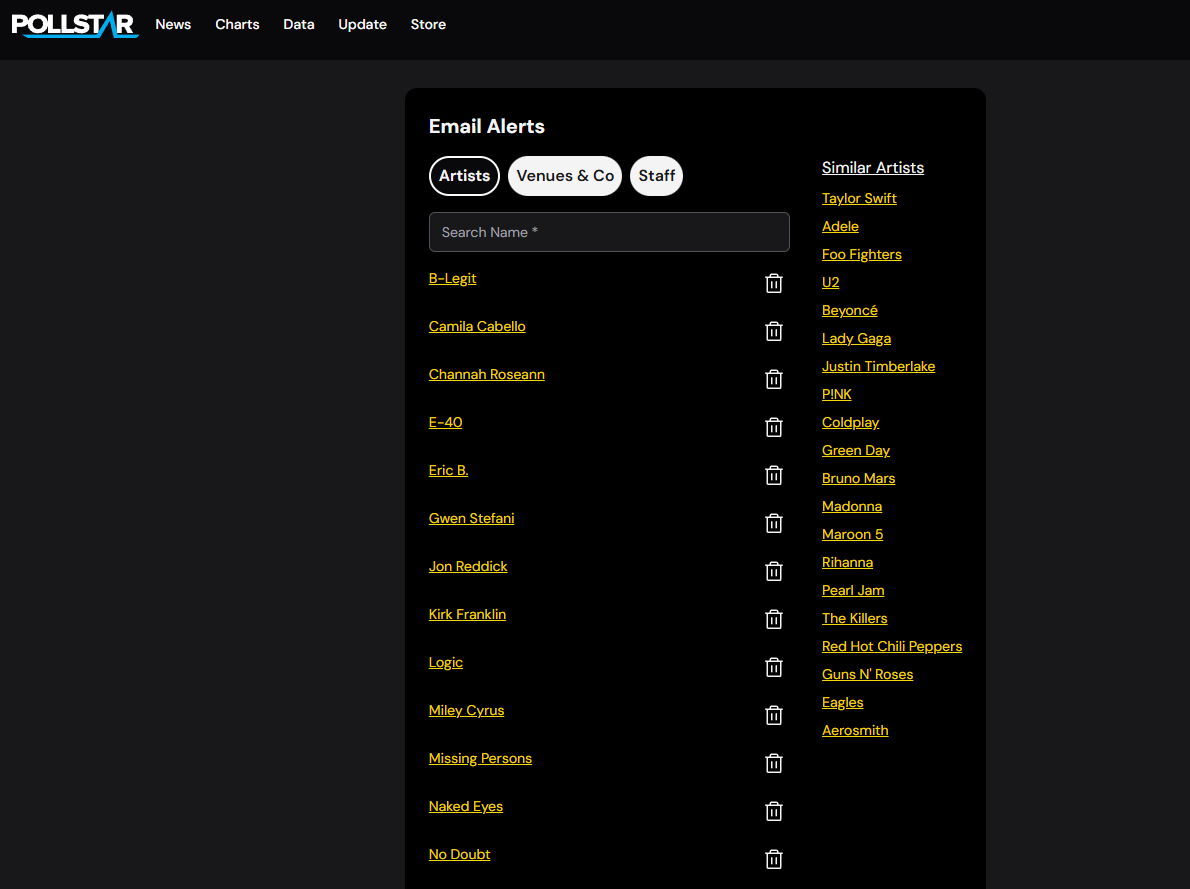
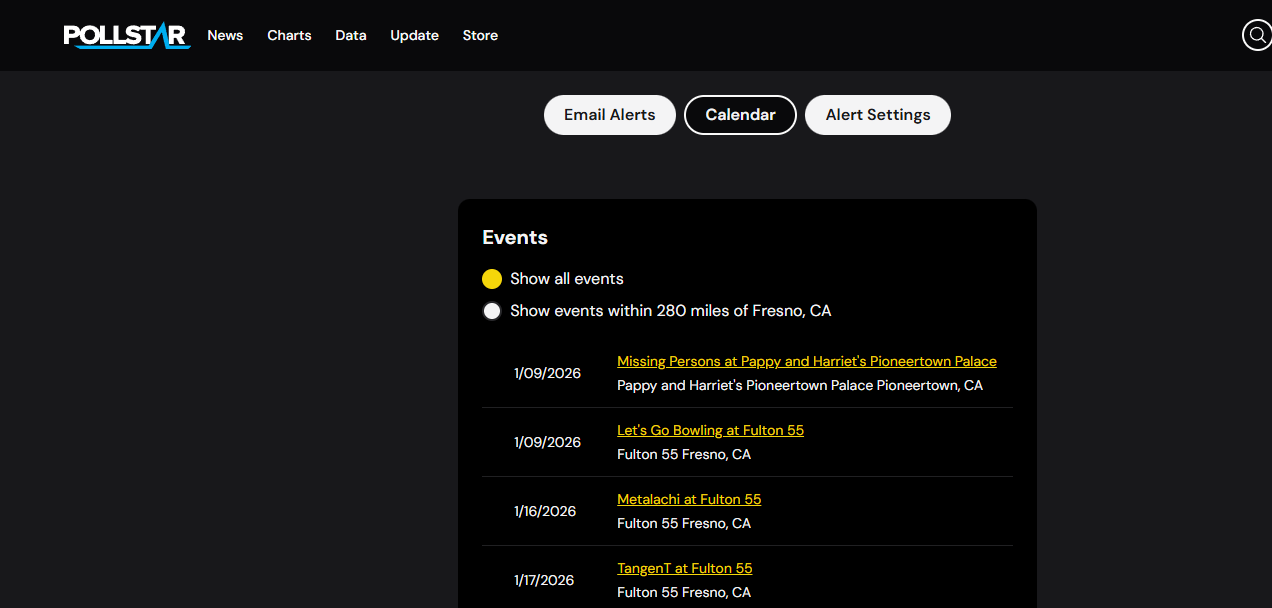
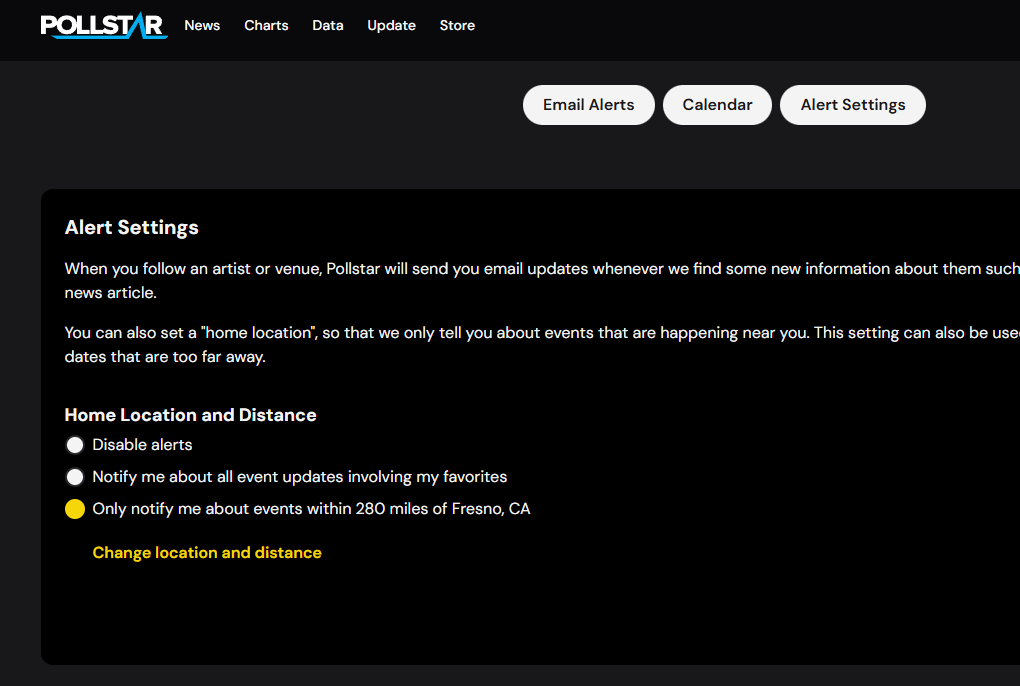
In this area you can also set Calendar and Alert options for your Favorites.
Calendar options:
Alert Settings:
* To disable specific alerts, select the garbage can icon next to the entity desired in your email alerts list.
* To disable all alerts, go to Alert Settings and select 'Disable alerts'.
Was this article helpful?
That’s Great!
Thank you for your feedback
Sorry! We couldn't be helpful
Thank you for your feedback
Feedback sent
We appreciate your effort and will try to fix the article